Activity History
A full audit log of everything that happens inside OpsPilot - task changes, workflow executions, notes, team actions, and more.
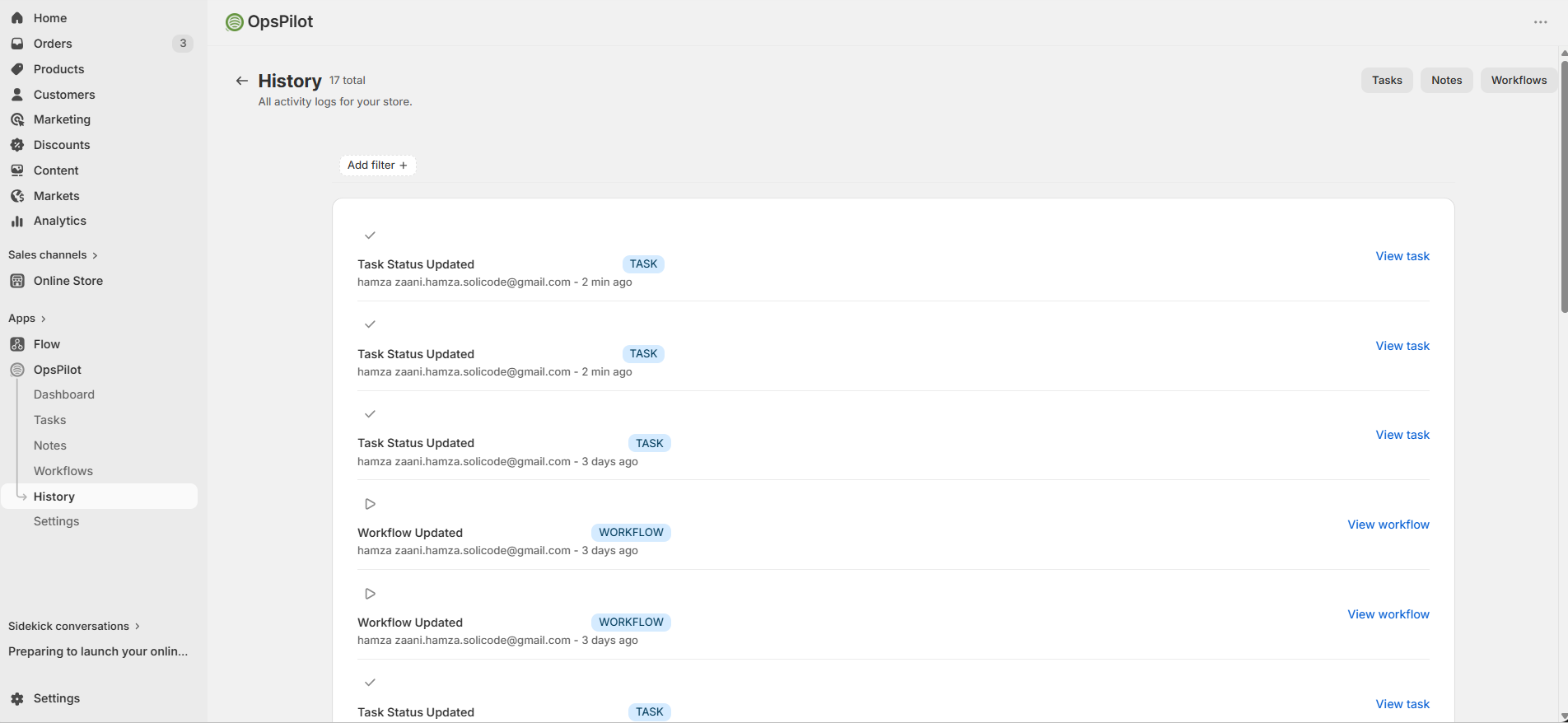
Each row shows the action performed, the user who performed it, the entity affected, and the timestamp. Click any row to see full detail.
What Is Activity History?
Activity History is your store's operational audit log. Every significant action taken in OpsPilot is recorded here - whether it was done by a team member manually, or automatically by a workflow.
Use it to:
- Track who created, updated, or deleted tasks and notes
- See every workflow execution with its result and payload
- Audit integration actions (emails sent, Slack messages posted, Sheets rows added)
- Investigate unexpected behavior or missed automations
- Demonstrate operational activity to stakeholders
Accessing Activity History
Activity Log Entries
Each entry in the activity log contains:
| Field | Description |
|---|---|
| Timestamp | Exact date and time the action occurred (in your store timezone) |
| User / Source | The team member who acted, or "Automation" for workflow-triggered actions |
| Action | What was done (e.g., "Task created", "Workflow executed", "Note deleted") |
| Entity | The specific task, note, workflow, order, or customer involved |
| Result / Status | For workflow runs: SUCCESS, FAILED, SKIPPED, or QUEUED |
| Details | Expanded payload: field values changed, action results, error messages |
Filtering Activity
Use the filter bar to narrow down entries:
| Filter | Options |
|---|---|
| Entity Type | Task, Note, Workflow, Order, Customer, Product |
| Action Type | Created, Updated, Deleted, Executed, Sent, Failed, Skipped |
| User | Any team member, or "Automation" for workflow-triggered actions |
| Date Range | Today, last 7 days, last 30 days, or custom date picker |
Workflow Execution Logs
Workflow executions are the most detailed entries in Activity History. Each run logs:
- The workflow name and trigger type
- The triggering entity (order ID, customer ID, etc.)
- Overall run status: SUCCESS, FAILED, SKIPPED, or QUEUED
- Each action result individually (a workflow with 3 actions shows 3 sub-results)
- Any error messages with the reason for failure or skip
- A payload snapshot - the data available when the workflow ran
Workflow Run Statuses
| Status | Meaning |
|---|---|
| SUCCESS | All actions completed without error |
| FAILED | One or more actions encountered a permanent error (e.g., invalid workflow schema, missing integration credentials) |
| SKIPPED | Conditions were not met, a usage limit was reached, deduplication was active, or all actions were filtered by setup rules |
| QUEUED | A delayed action is waiting to run at a future time |
Task Timeline vs. Activity History
OpsPilot has two complementary audit views:
| Task Timeline | Activity History | |
|---|---|---|
| Scope | A single task - shows every status change and edit on that task | Entire app - all tasks, notes, workflows, and integrations |
| Where | Inside the task detail view | History page in the sidebar |
| Best for | Investigating one specific task's history | Cross-feature audit, compliance, debugging automations |
Exporting Activity
To export activity data for reporting or compliance purposes, use a Google Sheets workflow action to automatically log activity to a spreadsheet as it happens - this is the recommended approach for ongoing audit trails.