Integrations
Connect Email, Slack, and Google Sheets to power your workflow actions.
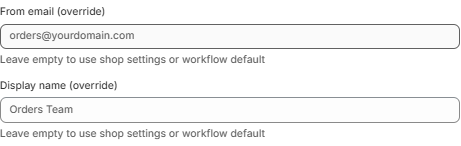
Override the sender address and display name for all automated emails.
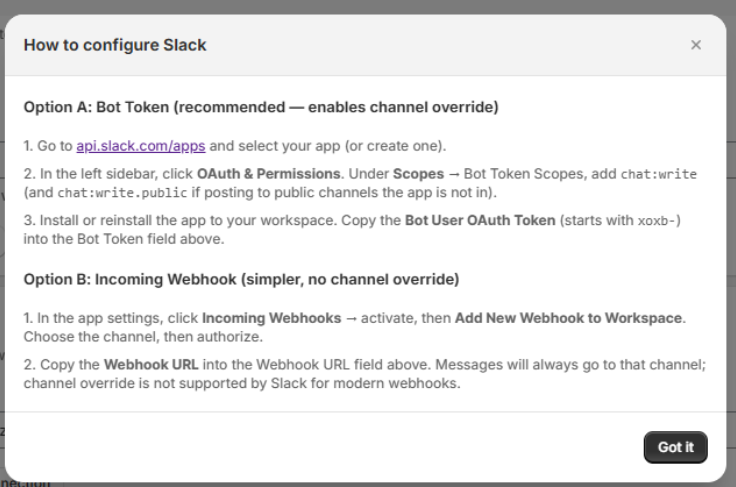
Choose Bot Token (multi-channel) or Webhook (single channel) to post alerts.
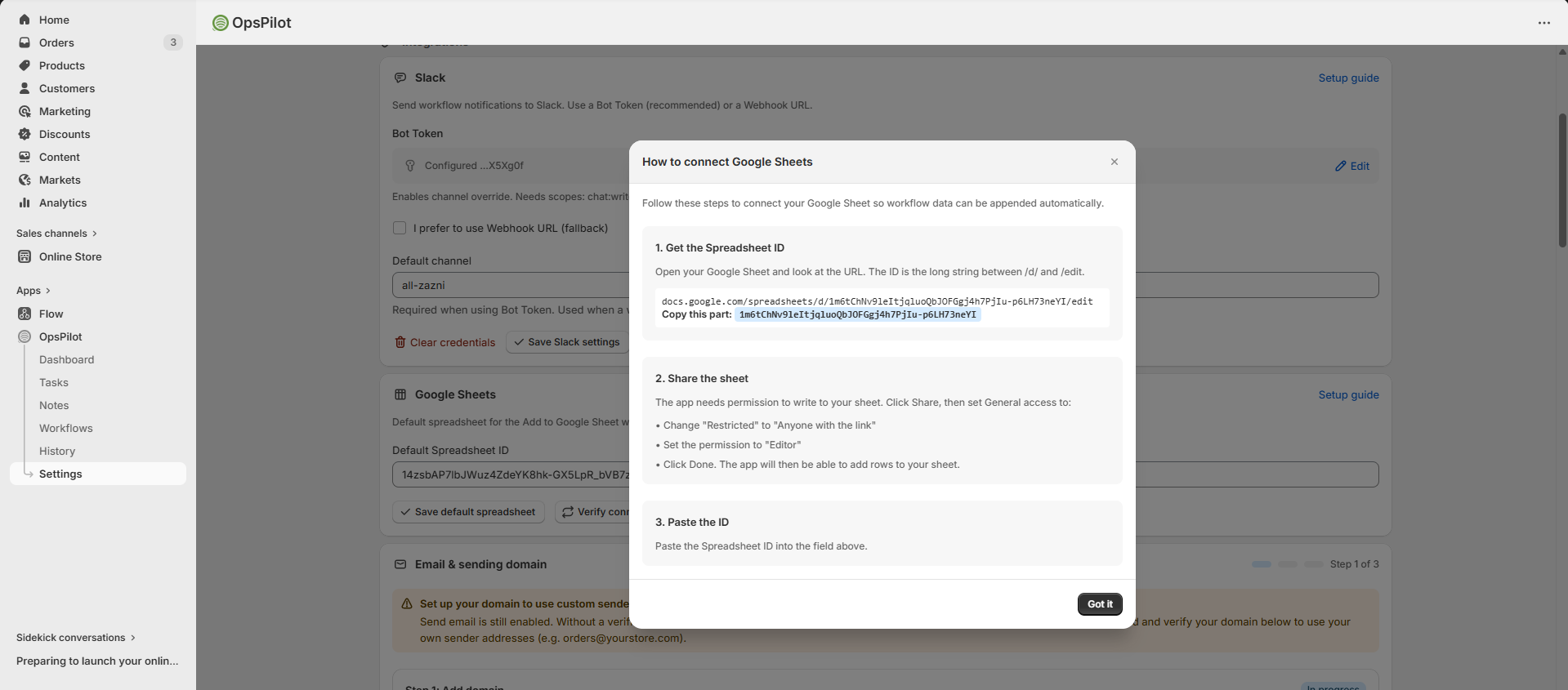
Paste your Spreadsheet ID, share as Editor, and log workflow data automatically.
Email Integration
Send automated emails from your own domain through your workflows.
Step 1: Add Your Domain
yourdomain.com)Step 2: Configure DNS Records
Add the generated DNS records at your domain registrar (GoDaddy, Cloudflare, Route53, etc.):
| Record Type | Purpose |
|---|---|
| MX | Mail routing |
| SPF (TXT) | Sender authorization |
| DKIM (CNAME) | Email signing / authentication |
| DMARC (TXT) | Email policy |
| CNAME | Verification |
Step 3: Verify Your Domain
After adding DNS records, click Verify Domain
Step 4: Configure Sender
Set your Sender Email (must use your verified domain), optional Sender Name, and Reply-To Email.
"From email (override)" sets the sender address (e.g. orders@yourdomain.com). "Display name (override)" sets the sender name (e.g. Orders Team). Leave empty to use shop settings.
Step 5: Customize Branding (Optional)
Upload your logo, set primary colors, and customize the email footer for all automated emails.
Slack Integration
Post automated messages to your Slack workspace from workflows.
Option A: Bot Token (Recommended)
chat:write and chat:write.public#all-zazni) and click Save Slack settings
Option A — Bot Token: Go to api.slack.com/apps, add chat:write and chat:write.public scopes, install, and copy the Bot User OAuth Token (xoxb-). Option B — Webhook: Activate Incoming Webhooks, add a new webhook, and copy the URL. Bot Token enables multi-channel posting; Webhook is simpler but single-channel only.
Option B: Webhook URL (Simpler)
A Webhook URL is easier but only posts to one channel. Create an incoming webhook at Slack, paste the URL in OpsPilot, and verify.
| Feature | Bot Token | Webhook |
|---|---|---|
| Post to multiple channels | Yes | One channel only |
| Per-workflow channel override | Yes | No |
| Setup complexity | Medium | Easy |
Google Sheets Integration
Log data from workflows directly into Google Sheets — great for reports and audit trails.
Step 1: Create a Service Account
Step 2: Share Your Spreadsheet
Open your Google Sheet, click Share, and add the service account email (from the JSON file) as an Editor.
Step 3: Add to OpsPilot
/d/ and /edit)
Step 1: Copy the Spreadsheet ID from your Google Sheet URL (between /d/ and /edit). Step 2: Share the sheet with "Anyone with the link" as Editor. Step 3: Paste the ID into OpsPilot, click Save, then Verify connection.