Tasks
Track what needs to be done, who's responsible, and when it's due. Create tasks manually, from notes, or automatically via workflows.
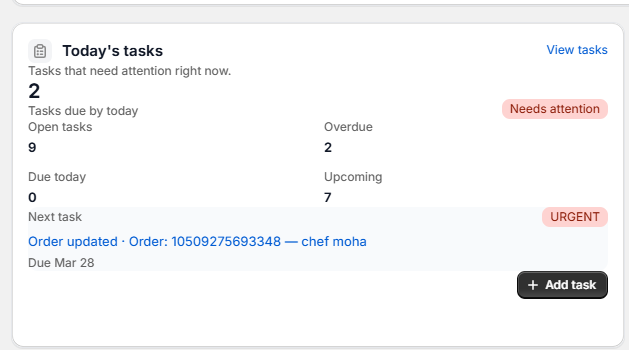
See open and overdue task counts at a glance from the dashboard.
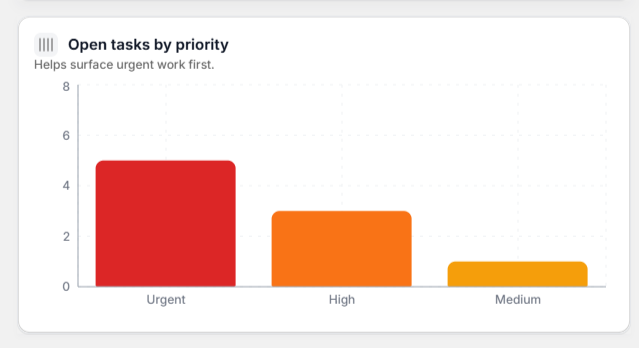
Visual bar chart showing tasks grouped by priority level — Low, Medium, High, Urgent.
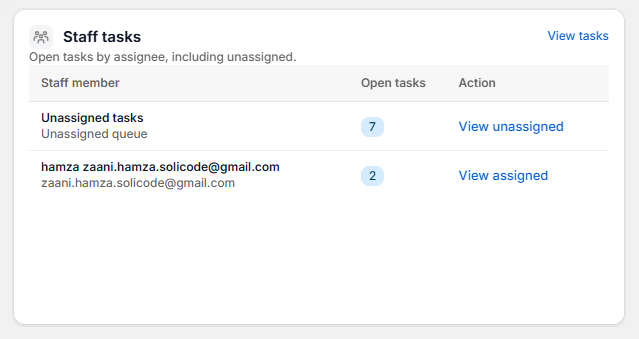
Staff tasks table shows each team member's open and overdue task count.
Creating a Task
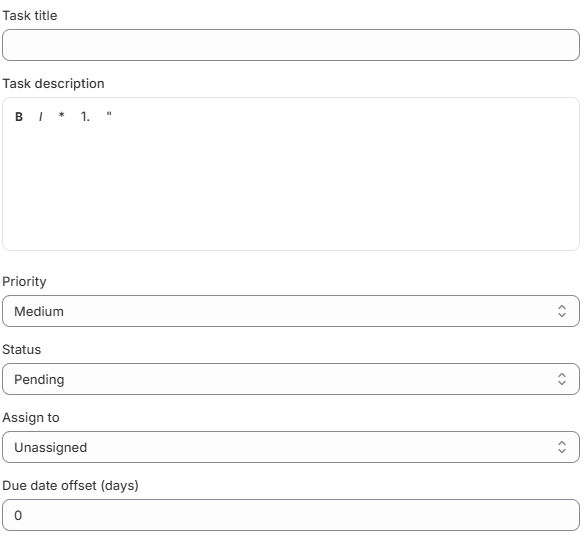
Every task includes a title, rich-text description, priority level (Low–Urgent), status, assignee, and due date offset.
Priority Levels
| Priority | When to Use | Badge |
|---|---|---|
| Low | Nice-to-have, no rush | Low |
| Medium | Should be done soon | Medium |
| High | Important, needs attention this week | High |
| Urgent | Drop everything and handle this now | Urgent |
Task Statuses
| Status | Meaning | Closed? |
|---|---|---|
| Pending | Task hasn't been started yet | No |
| In Progress | Someone is working on it | No |
| On Hold | Paused — waiting for something | No |
| Completed | Task is done | Yes |
| Cancelled | Task was cancelled | Yes |
| Archived | Old task moved to archive | Yes |
Your admin can create custom statuses in Settings (e.g., "Waiting for Customer", "Under Review").
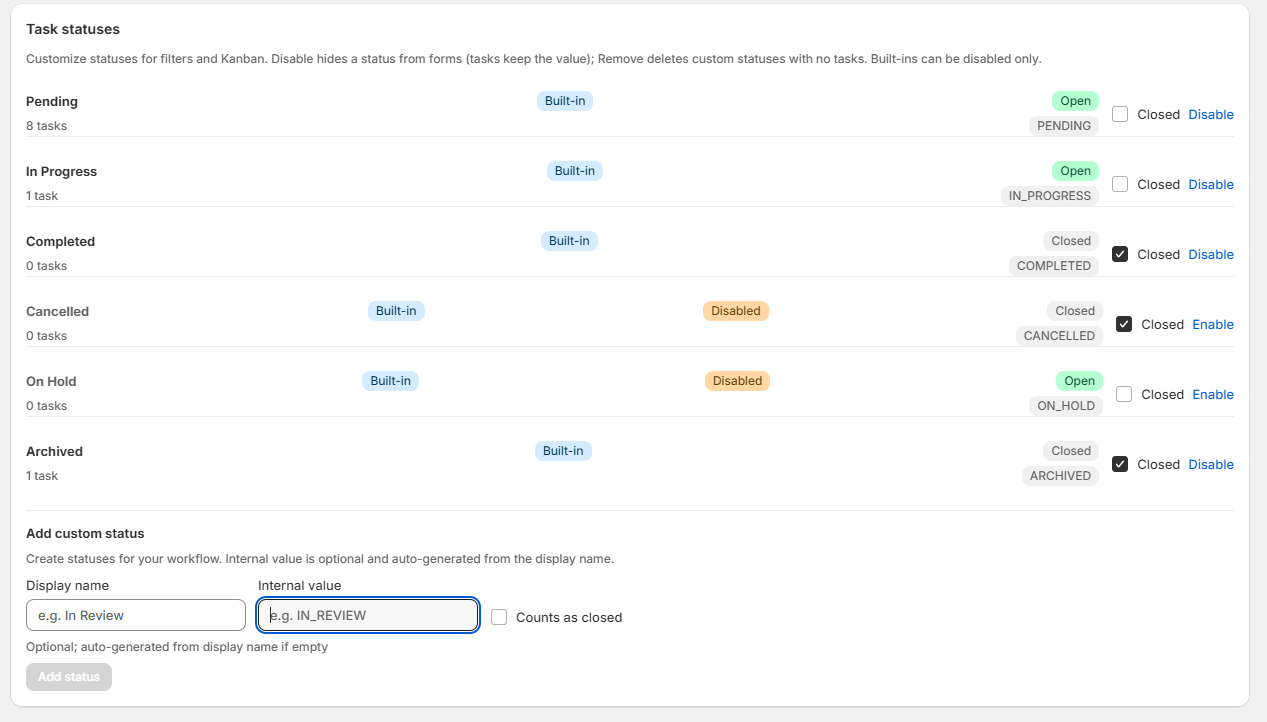
Six built-in statuses with Open/Closed classification. Disable unused statuses to hide them from forms.
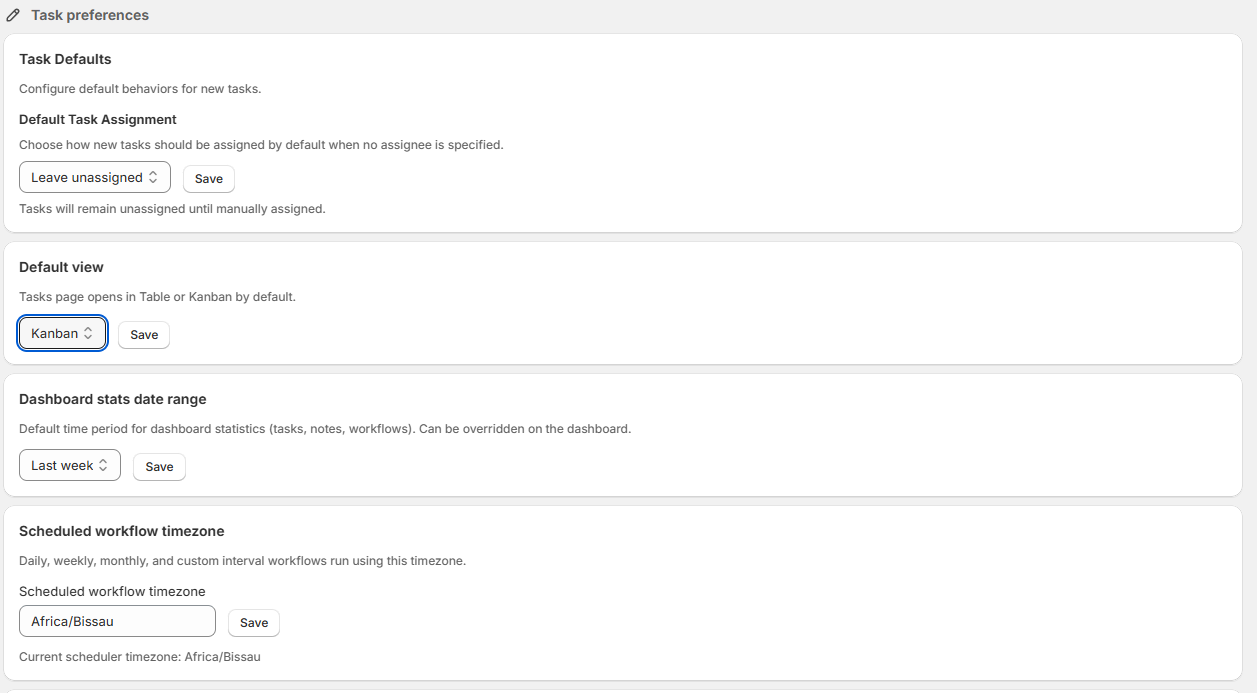
Configure default assignment, default view (Table/Kanban), dashboard date range, and scheduled workflow timezone.
Table View
The default view shows tasks in a table with columns for title, status, priority, assignee, due date, and created date. Click column headers to sort.
Kanban Board View
Switch to the Kanban view for a visual board — tasks appear as cards organized by status. Drag and drop cards between columns to change their status.
Task Timeline
Every task has a timeline that shows its full history — when it was created, every status change, every edit, and if it was created by a workflow (shows which workflow and what triggered it).
Linking Tasks to Notes
Tasks and notes can be connected. When creating a task, search for existing notes to link in the Notes section. You can also convert notes to tasks from the Notes page.
Auto-Created Tasks (From Workflows)
When a workflow has a "Create Task" action, tasks are created automatically. These tasks show an "Auto-created" badge and include a timeline entry showing which workflow created them.
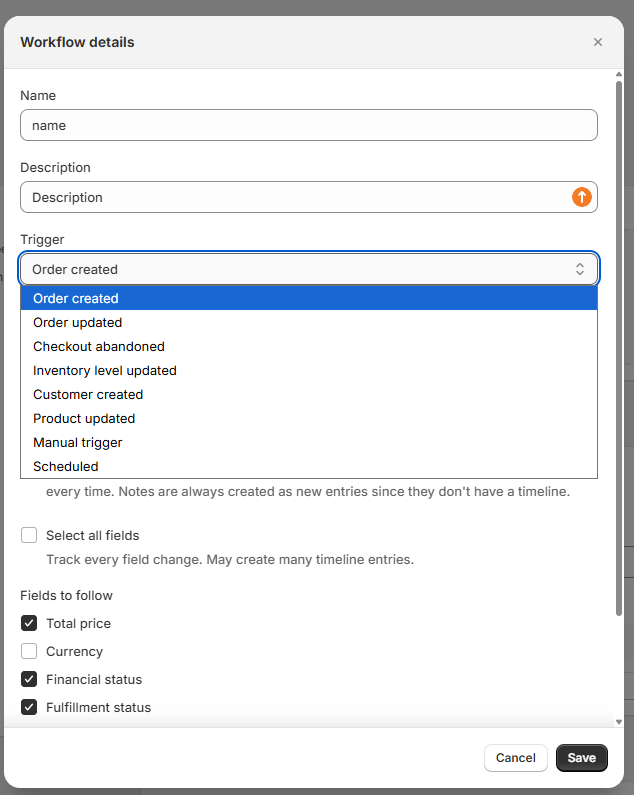
Select an event: Order created, Checkout abandoned, Inventory level change, and more.
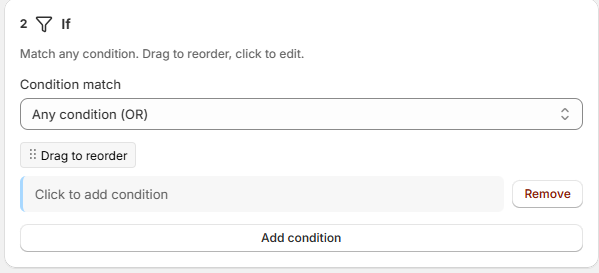
Filter by order total, tags, financial status, or define custom field paths.
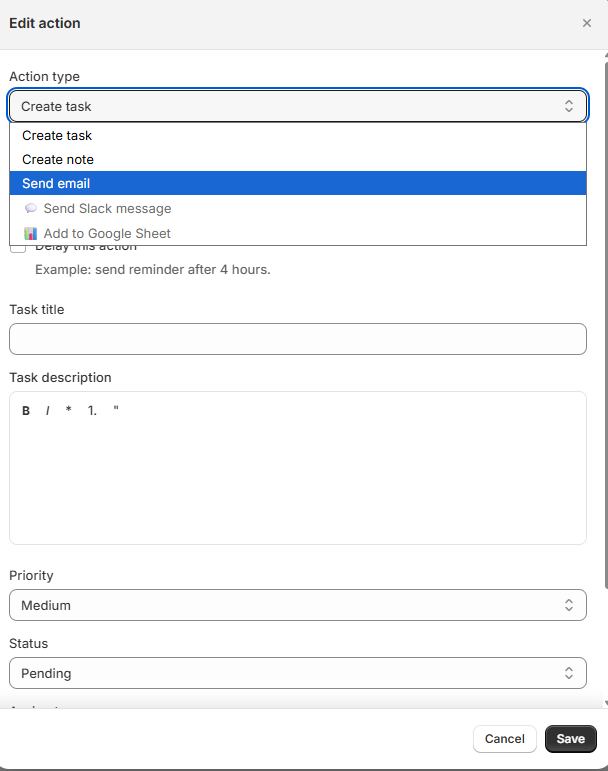
Auto-creates a task with title, description, priority, and assignee from template variables.
Filtering & Searching
| Filter | Options |
|---|---|
| Status | Any, Pending, In Progress, Completed, etc. |
| Priority | Low, Medium, High, Urgent |
| Assigned To | Specific team member or Unassigned |
| Due Date | Date range filter |
| Show | Open tasks, Overdue tasks, All tasks |