Workflows
Automate repetitive operations — when something happens in your store, OpsPilot can create tasks, send emails, post to Slack, and more.
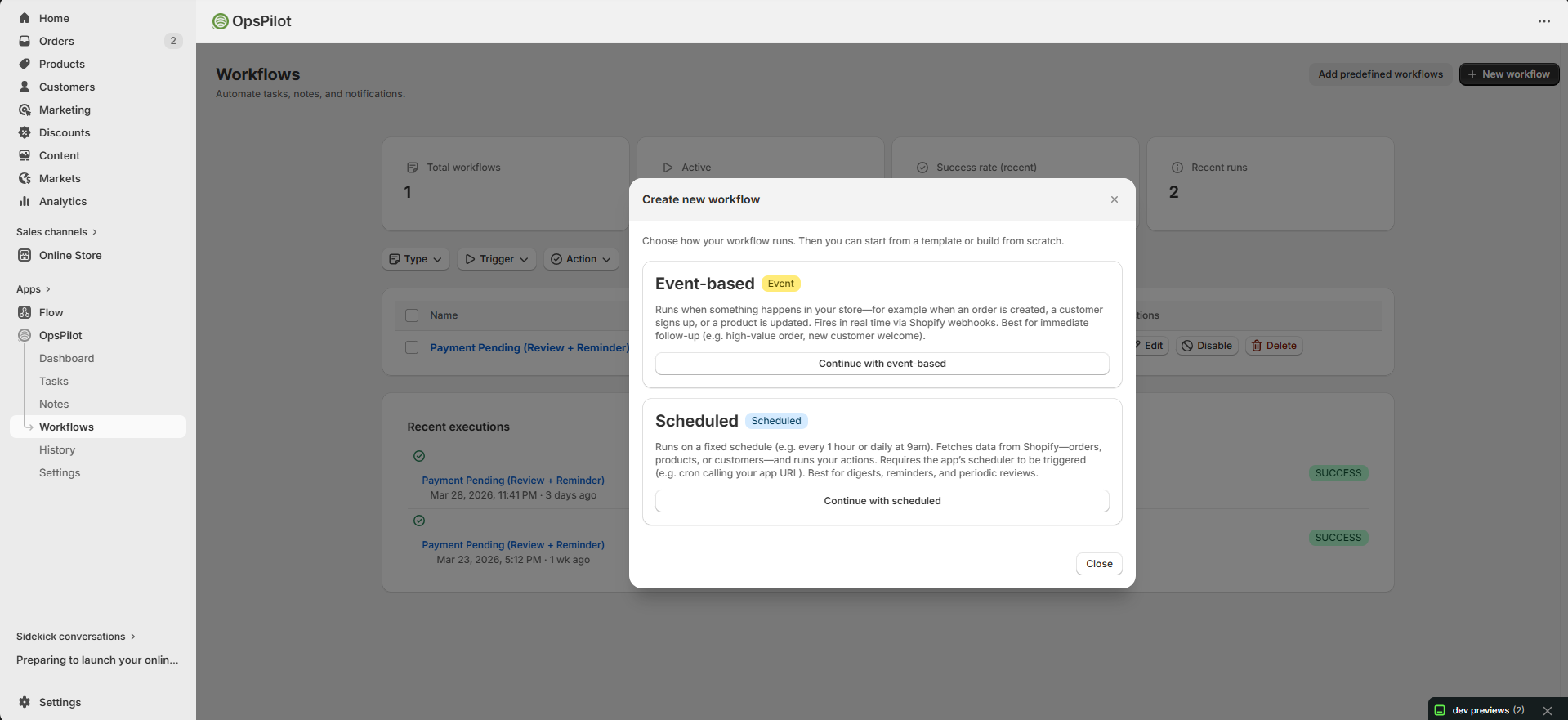
Choose Event-based (fires on store events) or Scheduled (runs on a timer).
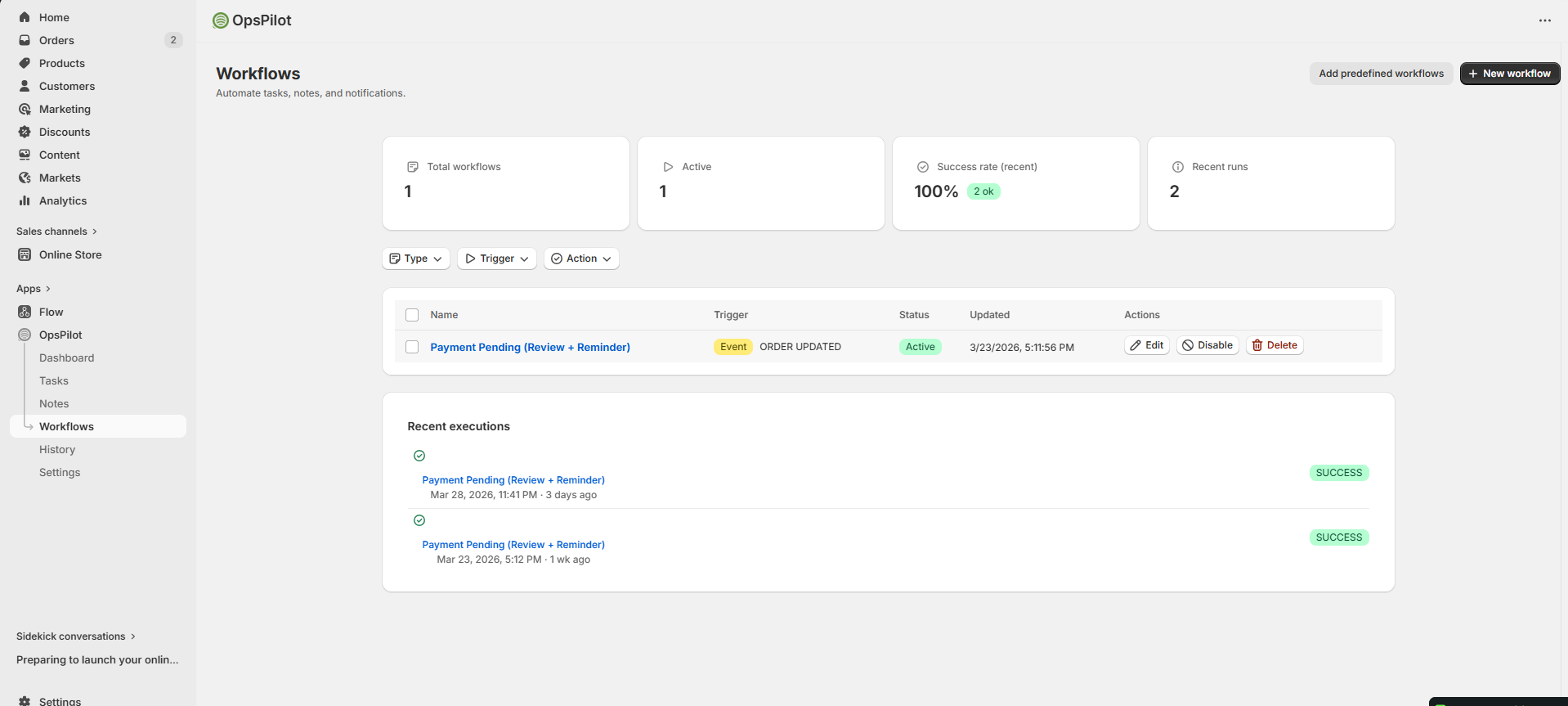
Track total workflows, active count, success rate, and recent execution history.
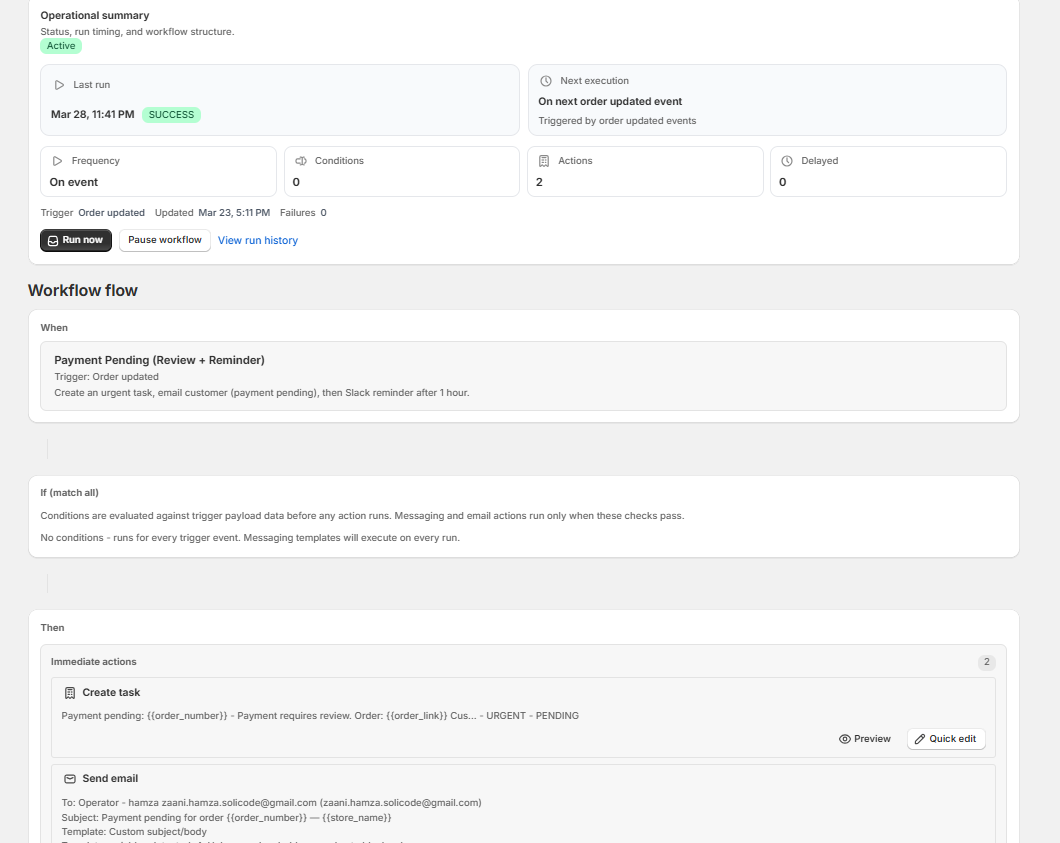
View the operational summary, run tests, check history, and pause or edit anytime.
What Are Workflows?
Workflows let you automate repetitive operations. When something happens (a new order, low inventory, abandoned checkout), OpsPilot can automatically create tasks, send emails, post to Slack, log to Google Sheets — or any combination.
Creating a Workflow
Upper card: Event-based (fires instantly on store events). Lower card: Scheduled (runs on a fixed time schedule). Blue "Create custom workflow" button at bottom-right.
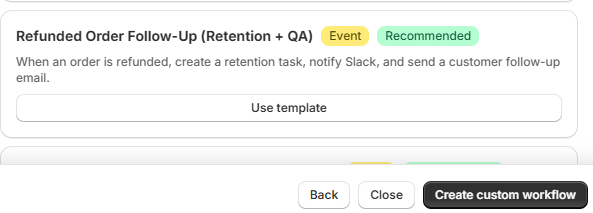
Partial view of template cards from "Choose a starting point." Click "Create custom workflow" (blue button, bottom-right) to build from scratch.
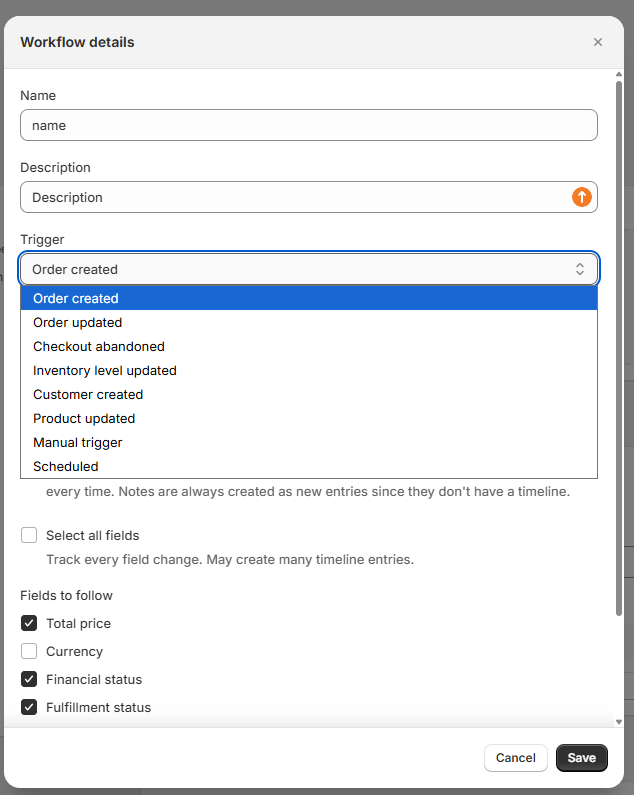
Top: Workflow name field. Center: Open dropdown listing all trigger events (Order created, Order updated, Checkout abandoned, etc.). Bottom-right: Save button.
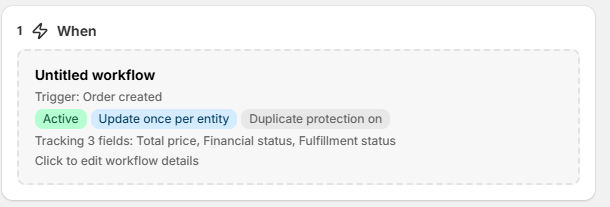
Shows workflow name, selected trigger (e.g. Order updated), green "Active" badge, and "Update once per entity" deduplication toggle.
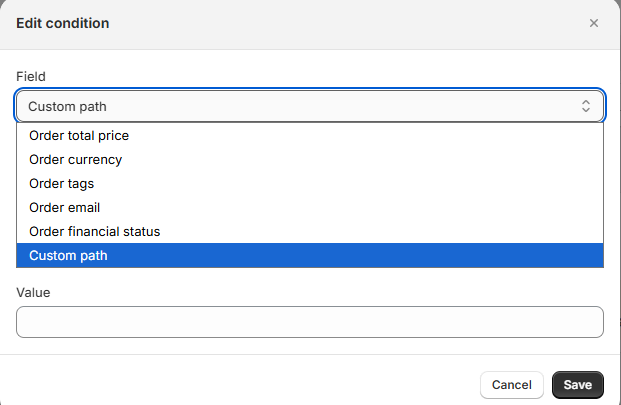
"Edit condition" dialog with field dropdown: Order total price, Currency, Tags, Email, Financial status, or Custom path.
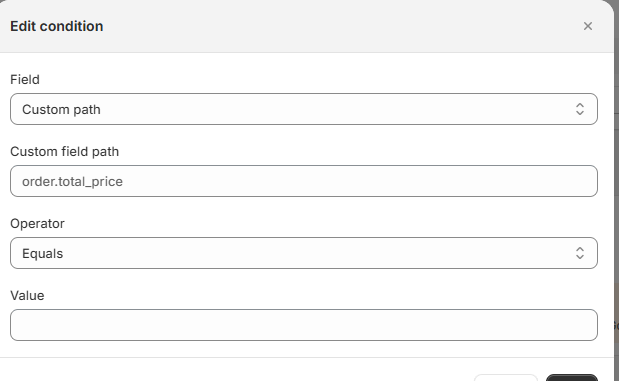
Field set to "Custom path" with a JSON path input (e.g. order.total_price), Operator dropdown (Equals, Greater Than, Contains...), and Value field.
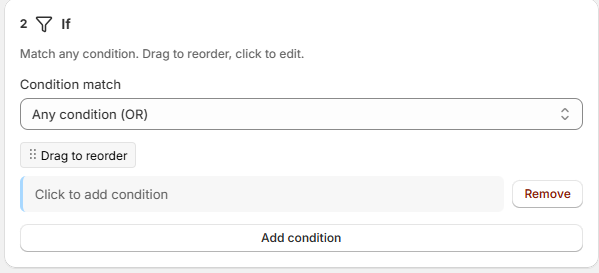
Step 2 "If" header with Condition match (Any/All), condition rows with Remove button, and "Add condition" button at bottom.
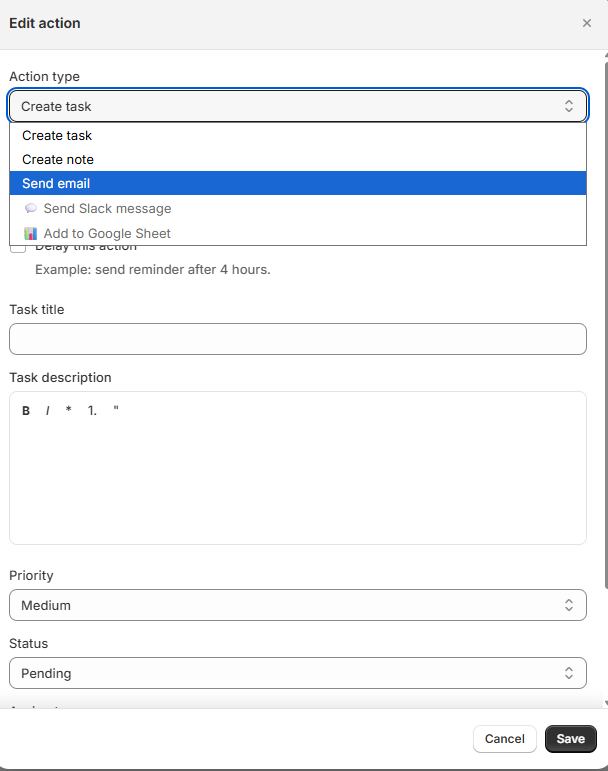
Dropdown open showing: Create task, Create note, Send email, Send Slack message, Add to Google Sheet. Below: task title, description, priority, status, assignee, due date.
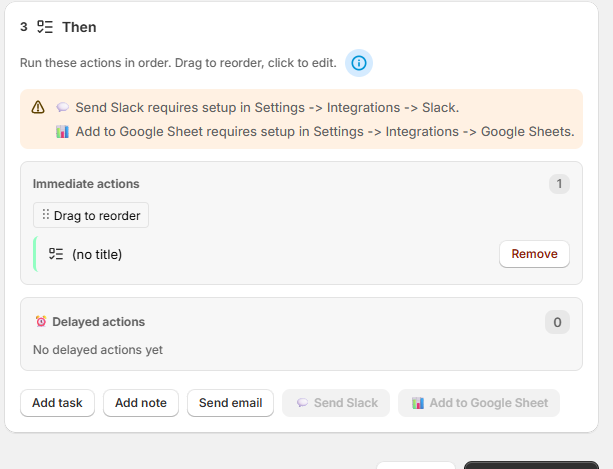
Step 3 "Then" header: "Run these actions in order." Immediate actions section (with drag-to-reorder) and Delayed actions section below. Action type buttons at bottom.
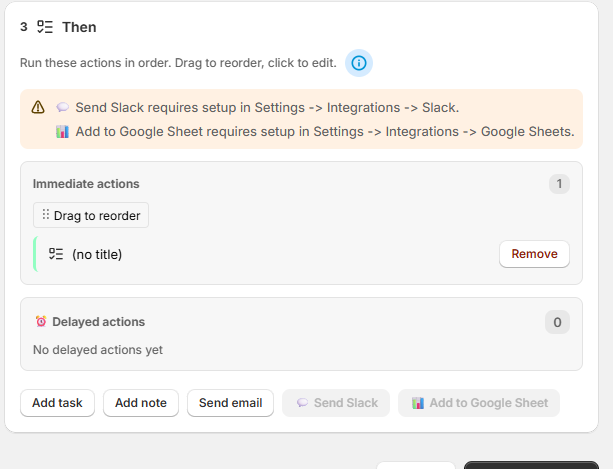
Orange banners warn that Slack and Google Sheets require setup in Settings. Each action has a drag handle and Remove button. Save button at bottom-right.
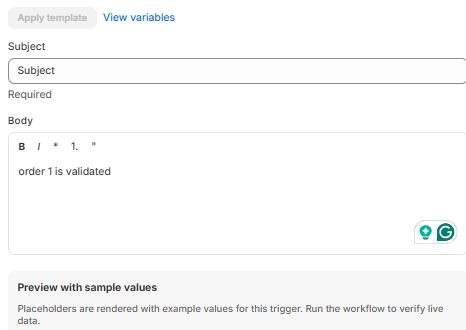
Subject field (supports {{variables}}), Body rich text editor with formatting toolbar, "Apply template" and "View variables" links, and a preview with sample values.
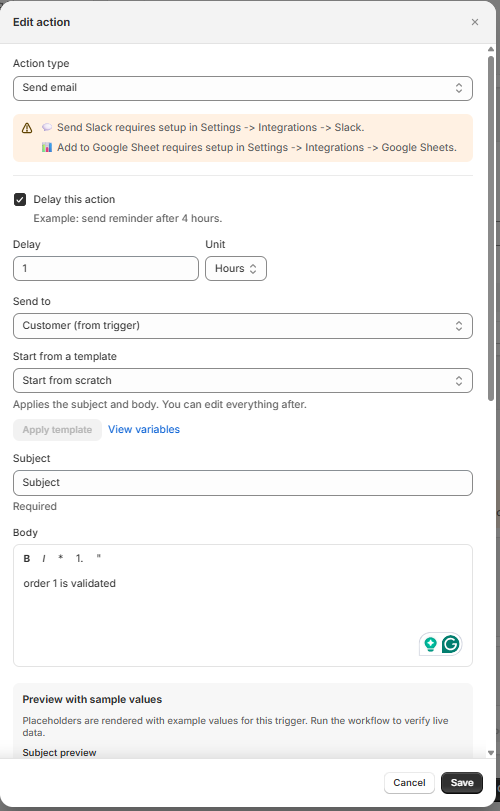
"Action type" set to Send email. "Send to" dropdown: Customer (from trigger), Staff, Admin, or Custom. "Delay this action" checkbox enabled with delay set to 1 Hour. Cancel and Save buttons.
Triggers
A trigger is the event that starts your workflow. You can choose one trigger per workflow.
Event-Based Triggers
These fire instantly when something happens in your Shopify store:
| Trigger | Fires When… | Example Use |
|---|---|---|
| Order Created | A new order is placed | Alert team for high-value orders |
| Order Updated | An order changes | Track payment or fulfillment changes |
| Checkout Abandoned | Customer leaves checkout | Send recovery reminder |
| Inventory Level Updated | Stock quantity changes | Alert when running low |
| Customer Created | New customer account | Welcome email, VIP tagging |
| Product Updated | A product is modified | Review task for quality control |
| Manual Trigger | You click "Run Now" | On-demand escalations |
Scheduled Trigger
Run workflows on a set schedule (daily, weekly, monthly, or custom interval). Perfect for batch operations like daily unfulfilled orders checks.
Conditions (Optional)
Conditions let you filter when the workflow runs. Without conditions, the workflow triggers on every matching event.
Operators
| Operator | Meaning | Example |
|---|---|---|
| Equals | Exact match | financial_status equals "pending" |
| Not Equal | Does not match | fulfillment_status not equal "fulfilled" |
| Greater Than | Numeric comparison | total_price greater than 500 |
| Less Than | Numeric comparison | available less than 10 |
| Contains | Text includes value | tags contains "vip" |
| Exists | Field is present | email exists |
AND / OR Groups
Combine conditions with AND (all must be true) or OR (at least one). You can nest groups for complex logic:
IF (order.total_price > 500 AND order.tags contains "wholesale")
   OR (order.total_price > 1000)
→ Run actions
Actions
Actions are what happens when the trigger fires and conditions are met. You can add multiple actions — they run in order.
Create Task
Automatically creates a task for your team. Set the title, description, priority, assignee, and due date offset.
Review high-value order #{{order_number}} — Priority: High — Assign To: John — Due: 2 daysCreate Note
Automatically creates an internal note. Set the title, content, entity type, and whether to pin it.
Send Email
Send an email to a customer, team member, or custom address. Supports HTML and template variables.
Send Slack Message
Posts a message to your Slack channel. Supports Slack markdown and template variables.
Add to Google Sheet
Appends a row to a Google Sheets spreadsheet. Great for reports, audit trails, and dashboards. Supports deduplication and custom styling.
Template Variables
Template variables let you insert dynamic data from the trigger into your actions. Wrap them in double curly braces: {{variable_name}}. See the complete Template Variables reference for every variable organized by trigger type, availability matrix, and usage tips.
| Variable | Value | Available For |
|---|---|---|
{{order_number}} | Order number (e.g., #1234) | Order triggers |
{{customer_name}} | Customer full name | Customer / Order triggers |
{{product_title}} | Product name | Product triggers |
{{store_name}} | Your store name | All triggers |
→ View all 60+ template variables
Delayed Actions
Add a delay to any action so it runs later instead of immediately. Enable Delay in the action settings and set the duration.
| Delay | Use Case |
|---|---|
| 30 minutes | Send a follow-up email after order confirmation |
| 2 hours | Remind fulfillment team if order still pending |
| 1 day | Check if abandoned checkout was recovered |
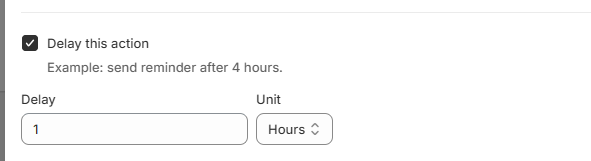
"Delay this action" checkbox (checked). Numeric input set to 1, "Hours" unit dropdown (also Minutes, Days). Example hint: "send reminder after 4 hours."
Deduplication (Smart Repeat Prevention)
OpsPilot automatically prevents duplicates:
- Task Deduplication: When "Create Once Per Entity" is enabled (default), existing tasks for the same entity are updated instead of creating duplicates
- Email / Slack / Sheets: Identical notifications are not sent twice within 24 hours by default
Scheduled Workflows
Scheduled workflows run on a repeating timer instead of reacting to store events. They are ideal for batch operations: checking unfulfilled orders every morning, sending a weekly summary note, or reviewing low inventory on a set schedule.
Setting Up a Scheduled Workflow
Frequency Options
| Frequency | Configuration | Example Use |
|---|---|---|
| Hourly | Runs every hour | Check for new abandoned checkouts every hour |
| Daily | Pick a time (or multiple) | 9 AM daily unfulfilled orders review |
| Weekly | Pick a day and time | Monday 8 AM weekly summary note |
| Monthly | Pick a day of month and time | 1st of month inventory restock check |
| Custom Interval | Every X hours/days/weeks | Every 4 hours, every 2 days |
Scheduled vs. Event-Based
| Event-Based | Scheduled | |
|---|---|---|
| Fires when | Instantly on a store event | On a fixed timer |
| Best for | Real-time reactions | Batch checks & digests |
| Data source | The event payload (one record) | Queried at run time (many records) |
| Conditions | Filter the event payload | Filter the queried records |
Workflow Templates
OpsPilot includes 40+ pre-built templates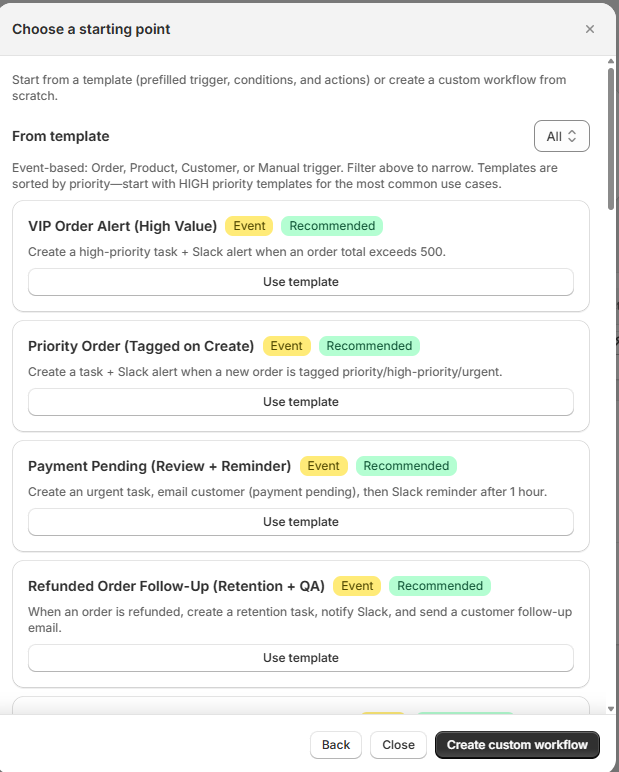
"From template" header with "All" category filter. Scrollable list: VIP Order Alert, Priority Order, Payment Pending, Refunded Order Follow-Up. Each card has a "Use template" button.
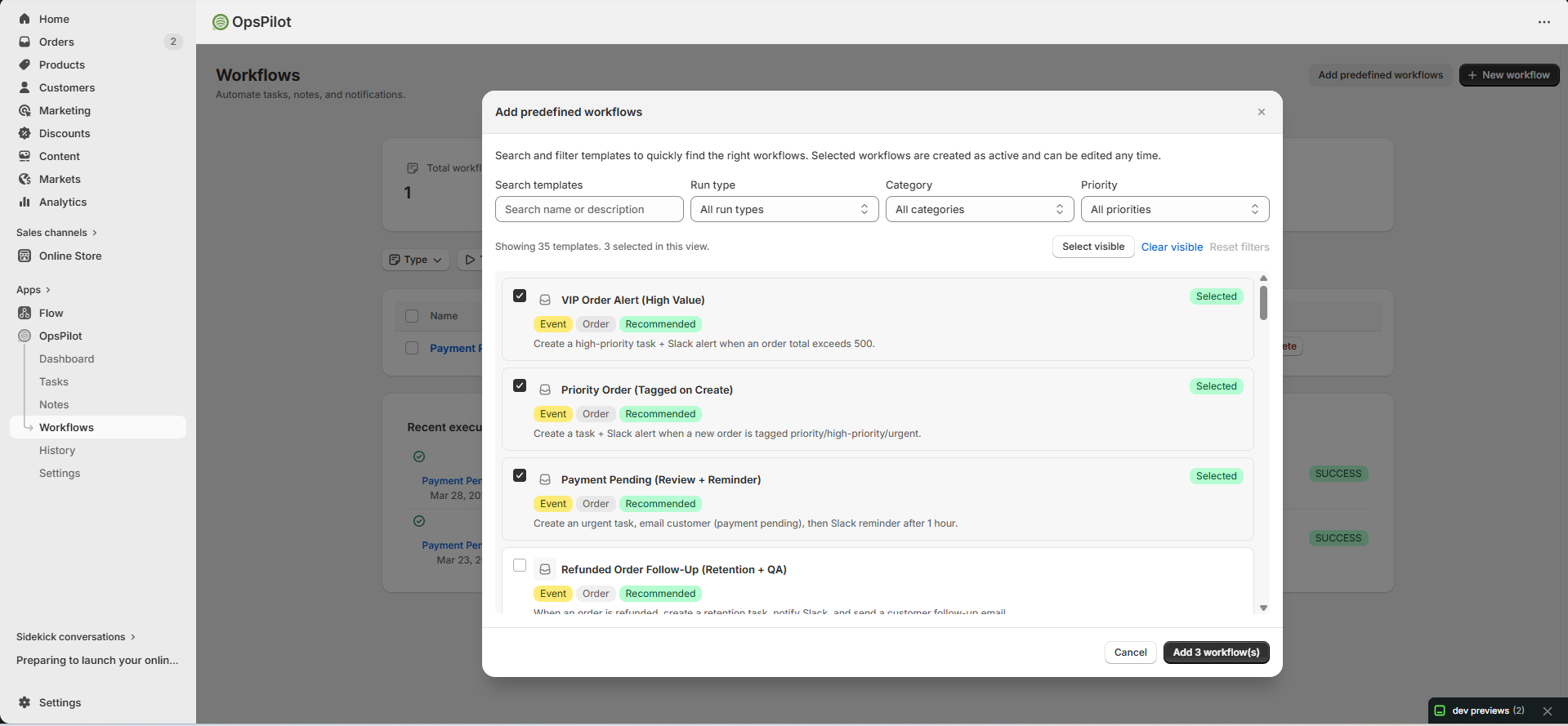
Search by name, filter by Run type/Category/Priority. Check multiple templates (3 selected), then click green "Add 3 workflow(s)" button to create them all at once.
Template Catalog
All templates are fully customizable after adding them. Click Use template to load a template, then edit it as needed.
Order Management
| Template | Trigger | What It Does |
|---|---|---|
| VIP Order Alert | Order Created | Creates a high-priority task and Slack alert for orders above a set value |
| Priority Order | Order Created | Creates an urgent task when an order is tagged at creation |
| Priority Tag Added | Order Updated | Fires when a priority tag is added to an existing order |
| Payment Pending Review | Order Created | Creates a task to review orders with pending payment status |
| Refunded Order Follow-Up | Order Updated | Creates a follow-up task and sends a customer email on refund |
| Order Fulfillment Reminder | Order Created | Sets a delayed task reminder if order is still unfulfilled after X hours |
| Unfulfilled Orders Monitor | Scheduled (Daily) | Daily digest task listing all open unfulfilled orders |
| Unpaid COD Confirmation | Scheduled (Daily) | Monitors cash-on-delivery orders waiting for payment confirmation |
Customer Management
| Template | Trigger | What It Does |
|---|---|---|
| New Customer Welcome | Customer Created | Sends a welcome email to new customers |
| High-Value Customer Alert | Customer Created | Creates a VIP task and Slack alert for high-lifetime-value customers |
| New Customer Task | Customer Created | Creates an onboarding task for every new customer account |
| Customer Tag VIP Note | Customer Created | Auto-creates a pinned note when a customer is tagged as VIP |
| New Customers Daily Digest | Scheduled (Daily) | Sends a daily note summarizing new customer signups |
Product & Inventory
| Template | Trigger | What It Does |
|---|---|---|
| Product Update Review | Product Updated | Creates a QA review task whenever a product is modified |
| Product Draft Review | Product Updated | Task created when a product is moved to Draft status |
| Weekly Product Review | Scheduled (Weekly) | Weekly note summarizing products changed in the past 7 days |
| Inventory Critical Restock | Inventory Updated | Urgent task + Slack alert when stock drops to a critical level |
| Low Stock Notification | Inventory Updated | Email alert when a product falls below a low-stock threshold |
| Low Inventory Monitor | Scheduled (Daily) | Daily digest of all products currently below par level |
Checkout & Recovery
| Template | Trigger | What It Does |
|---|---|---|
| Abandoned Checkout Recovery | Checkout Abandoned | Sends a recovery email after a configurable delay |
| High-Value Checkout Escalation | Checkout Abandoned | Creates a high-priority task for abandoned checkouts above a set value |
Scheduled Reports & Reminders
| Template | Schedule | What It Does |
|---|---|---|
| Daily Review Task | Daily | Creates a daily review task at a set time each morning |
| Weekly Summary Note | Weekly | Auto-creates a note summarizing the week's activity |
| Inbox Cleanup Reminder | Weekly | Reminds team to review and close stale tasks |
| Recent Orders Digest | Scheduled | Logs recent orders to a Google Sheet for reporting |
| Recent Customers Review | Scheduled | Logs new customer data to a Google Sheet |
Manual Workflows
| Template | Trigger | What It Does |
|---|---|---|
| Manual Escalation | Manual Trigger | On-demand urgent task creation + Slack notification |
| Manual Quick Task | Manual Trigger | Quickly create a standard task with pre-filled fields |
Workflow Management Screens
Four stat cards (Total, Active, Success rate, Recent runs). Type/Trigger/Action filter dropdowns. Workflow table with Name, Status, Actions columns. Recent execution log at bottom.
Operational summary (Active badge, last run, next execution). Frequency, Conditions, Actions counts. "Run now", "Pause", "View run history" buttons. When/If/Then flow cards below.
Testing a Workflow
You can test without waiting for a real event: open the workflow and click Test Workflow